Timing Configuration
Button Configuration
Device Naming
AeroRemote User Manual
Introduction
Thank you for choosing AeroRemote! AeroRemote will enable you to use your flight instrument better, more efficiently and more safely.
No more releasing the brakes, no more pens on touchscreens – your hands stay where they belong!
This guide explains how to perfectly combine your AeroRemote and your flight instrument / software to meet your requirements in the air. Take the time to set this up once and enjoy relaxed and safer flights!
Features
The AeroRemote has the following features
- 10 freely configurable buttons for use with your flight instrument / software (currently supports XCTrack, but more to come)
- Zello PTT functionality
- AnyTone PTT functionality
- Firmware updates over BLE
- 2 "Joysticks" with 5 axis each (left, right, up, down, and a "click" button)
- Battery life of at least 2500 hours (yes, you read that right)
- Charging via USB-C
- Software updates via USB-C
- Pressing both joysticks towards each other powers it on. No need to find a power button when you are already airborne.
- When you shutdown your flight instrument, the AeroRemote will power off after 60 seconds of inactivity. Nothing to worry about, nothing to forget.
- Manual power off by pressing the center of both joysticks at the same time for 3 seconds. Useful if you want to upload your flight to XContest and want to enter a comment - as long as the AeroRemote is connected, you will not see an onscreen-keyboard.
Getting Startednecessary
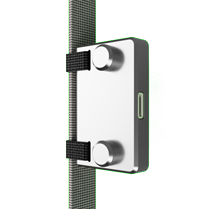
First, decide where you want to mount the AeroRemote. We recommend mounting it directly above the brake attachments on the riser, directly below the lines.
You can use the AeroRemote on the left or right. The two joysticks always point inwards – i.e. to the right when mounted on the left riser and vice versa.
Mounting the AeroRemote
- Open both velcros, but do not remove them from the AeroRemote completely
- Hold the AeroRemote to the riser where you want to mount it
- Wrap the velcro around the riser, starting with the end pointing inward
- Pull the velcro as tight as possible before starting to close it
- Once satisfied with the tightness, close the velcro completely
- Cut the excess velcro 1 cm inwards from the trailing edge of the AeroRemote
- Insert the excess velcro into the slit on the back of the AeroRemote
- Massage the Velcro fasteners again with your fingers so that they hold perfectly.
- Done!
Connecting the AeroRemoterecommended
Now it's time to connect the AeroRemote to your computer to configure it. Follow these steps:
- Make sure your computer is Bluetooth enabled.
- Press both joysticks towards each other for 3 seconds to power it on. It will stay powered on for 60 seconds while unconnected.
- If your AeroRemote is already connected in your system Bluetooth settings, disconnect it there first. The web configuration tool needs exclusive access to the device.
- Open the AeroRemote Control Center and click the "Connect Device" button.
- A popup will appear asking you to select the AeroRemote from the list of devices. Select it and click "Connect".
- Your system will ask you to enter a code on your AeroRemote. Just ignore it.
- The AeroRemote should now be connected and you can start configuring it.
Button Configurationrecommended
The AeroRemote has 10 buttons. You can configure each button to your liking. Follow these steps:
- Open the AeroRemote Control Center and look for the "Button Configuration" section.
- The most important configuration is the "Mounting Side". This determines which side of the riser the AeroRemote is mounted on. This affects the button mapping accordingly.
- Once you have configured the mounting side, you can start configuring the buttons. For each button, you can choose the mode.
Button Mode Reference
The following table describes all available button modes:
| Mode | Description |
|---|---|
| REPEAT | Continuous input while button is held. Useful for things like panning or zooming on a map. |
| SHORT/LONG PRESS | Single press with short/long press support. Useful for things like a double function (short and long press). XCTrack supports this, so you can use one button for two functions. |
| APP SWITCHER | Lets you switch between open applications (Android). Only works on newer versions of Android. |
| VOLUME DOWN | Turn system volume down |
| VOLUME UP | Turn system volume up |
| SCREEN DARKER | Decrease screen brightness |
| SCREEN BRIGHTER | Increase screen brightness |
| ZELLO PTT | Trigger Zello PTT |
| ANYTONE PTT | Trigger AnyTone PTT |
Timing Settingsoptional
This is for advanced users only. It allows you to configure the timing of the buttons. Follow these steps:
- Open the AeroRemote Control Center and click the "Timing Settings" button.
- The timing configuration allows you to control how fast the repeat-mode buttons repeat when held down.
- The "Debounce" configuration allows you to control how long the repeat-mode buttons need to be held down before they are recognized as a single press. The higher the value, the longer the buttons need to be held down. This is great if you want to prevent accidental presses of the buttons.
- The "Repeat Speed" configuration allows you to control how fast the repeat-mode buttons repeat when held down. The higher the value, the faster the buttons repeat.
Device Namingrecommended
You can name your device to make it easier to identify. This is optional, but it's a good idea to name it something unique so that you can easily find it later. Follow these steps:
- Open the AeroRemote Control Center and click the "Device Naming" button.
- Enter a name for your device. It will be prefixed with "AeroRemote_".
- Click the "Save" button to save the name. The device will reset automatically and you will need to reconnect to the AeroRemote Control Center.
XCTrack Configurationnecessary
If you use XCTrack, it's time to configure it. Follow these steps:
- Connect the AeroRemote to your flight instrument.
- Open XCTrack and go to "Settings"
- Select "Keys and Actions".
- Select a function you want to remote-control with the AeroRemote.
- Press the button on your remote that you want to use for this function. If it's a "repeat-mode" button, a short press is all you need. If it is a "Short/Long Press" button, a short press will trigger this function with a short press function and a long press will trigger this function with a long press.
- Repeat for all functions you want to remote-control with the AeroRemote.
- Done!
You can now use your AeroRemote to control your flight instrument / software. Enjoy your flights!
Zello Configurationnecessary
If you want to use the Zello PTT functionality, you need to configure Zello to use the AeroRemote. Follow these steps:
- Open Zello
- Go to the PTT-menu and click on the + icon
- Press the button on your AeroRemote that you have configured as the Zello-button
- If it doesn't work, try to power cycle the AeroRemote
Troubleshooting
Connection Issues
Web configuration tool connection issues
- If you see "Device appears to be connected to your system" or similar message, go to your system's Bluetooth settings and disconnect & "forget/ignore" the AeroRemote first.
- Make sure no other applications or devices are connected to the AeroRemote.
- Try refreshing the web page and attempting to connect again.
- Ensure the AeroRemote is powered on.
Flight instrument / software connection issues
- Disconnect & forget the AeroRemote on any device nearby in the Bluetooth settings
- Power cycle the AeroRemote
- Disable & re-enable Bluetooth on your device
Firmware Updates
Firmware updates bring new features, improvements, and bug fixes to your AeroRemote. Updates are performed wirelessly through the AeroRemote Control Center.
⚠️ WARNING: Firmware updates cannot be undone. Make sure your device has enough battery before updating.
How to Update Firmware
- Ensure your AeroRemote is connected to the Control Center via Bluetooth.
- The Control Center will automatically check for available updates.
- If an update is available, click the "Update Firmware" button.
- Wait for the update to complete. Your device will restart automatically when finished.
- Do not disconnect or turn off your device during the update process.
Troubleshooting: If the update fails, try the following:
- Ensure the device has sufficient battery (at least 50% recommended)
- Try reconnecting the device and attempting the update again
- Make sure you have a stable Bluetooth connection
- As a last resort, use the reset button on the device (paperclip in the small hole on the front)
Firmware Changelog
You're all set!
Your AeroRemote is configured and ready to fly.
You can close this tab now.